Showing posts with label tv connection. Show all posts

Thursday, November 20, 2008

WARNING!!! HD CONTENT CORRUPTED


Error: HD CONTENT CORRUPTED, USE COMPONENT CABLES is displayed when connected with a Motorola® cable box using HDMI.

Sony has investigated this issue and believe that some Motorola cable boxes were produced with an early version of HDMI software that may cause this symptom. Later versions of the cable box HDMI software have been tested and appear to work properly when connected to Sony TV and Audio/Video Receiver products. Since it is believed to be an issue with the cable box, no service fix is available from Sony; the cable company should be contacted to report this problem.

This issue is known to occur in the following Motorola cable box models:

DCT3412I
DCT6412
DCT6412III
DCT6416III

Although the issue has been known to occur with the above cable box models, it is possible that other models may be affected.

NOTE: As a workaround, you can connect the cable box to the TV using a component (Y/Pb/Pr) cable if both the TV and cable box have these connections.

Bright iDEA FROM Sony, right! Good luck ^_^

Saturday, April 12, 2008

How to connect a camcorder to a VCR using Audio/Video (A/V) cables?


Are you still having problems in connecting your favorite camcorder to a VCR using Audio/Video (A/V) cables? Well I guess yes because you are hardly looking in the web for answers and exact information how to do it or if it is possible. Good thing because you are in the right site and I can give you all the exact information that you will need. First of all, before anything else just make sure that the audio/ video cable that you are currently using is a new one or in proper condition because if it s not, well were going to have a tough time in troubleshooting regarding its connection to the vcr. If the cable is not working or you are not sure if it is defective, please go to the nearest electric or camera and tv parts for verification or check up. So if all items are good to go, follow this procedure to connect a camcorder to a VCR using Audio/Video (A/V) cables.

Connect an A/V cable to the LINE OUT jack on the camcorder.
Connect the other end of the A/V cable to an available LINE IN jack on the VCR.
Turn on the camcorder.
Turn on the VCR.
Tune the VCR to the appropriate line input in which the camcorder is connected.

Thursday, April 10, 2008

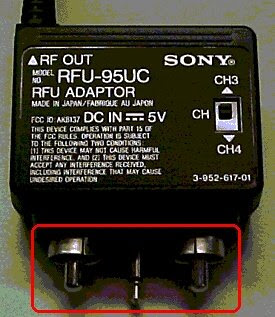
How to connect a camcorder to a television using an RFU adapter?

Basically you will ask first about an RFU Adaptor and what is it for? So let me give you first a refresher about this topic. The RFU adapter connects the camcorder console to televisions that do not have individual audio and video connections. It features two plugs. The first plug has an end that goes directly into the camcorder and the plug goes into the televisions coaxial cable socket. The RFU adapter also features a coaxial cable socket of its own, so you will not have to fiddle the cords when you want to switch from camcorder to television.

It is not that confusing, right? This is only easy as long you will follow the procedures. Read each sentences properly and try to analyze and visualize each of them.

Please follow this procedure in connecting a camcorder to a television using an RFU adapter.
1. Connect the Audio/Video (A/V) connector of the RFU adapter to the A/V output jack on the camcorder.
2. Connect the coaxial cable from the RFU adapter to the VHF/UHF jack on the television.
3. On the RFU adapter, slide the CH switch to CH3 or CH4 (Channel 3 or Channel 4).
4. Turn on the television.
5. Tune the television to the same channel that was selected on the RFU adapter in step 3.
6. On the camcorder, slide the POWER switch to the VTR or PLAYBACK position.
7. Press the PLAY button on the camcorder.

Monday, April 7, 2008

How to connect a camcorder to a television using an S-Video cable?

Another day, another issue, and another answer. Here is our topic for this day. How to connect a camcorder to a television using an S- Video cable? A tricky question but actually it’s easy to install it and for non - technical consumers they will probably say “ What is that?”. Well I did generate here the following steps on how to configure the connection manually. So please follow the steps below to connect a camcorder to a television using an S-Video cable. Always remember that both the camcorder and television must have an S-Video jack to complete this procedure.

Connect one end of an S-Video cable to the S-VIDEO IN jack on the television. Connect the other end of the S-Video cable to the S-VIDEO OUT jack on the camcorder. Connect an audio cable to the appropriate left and right audio input jacks on the television. Connect the other end of the audio cable to the audio output jacks on the camcorder. Turn on the camcorder and set it to the playback mode. Begin playing the media (tape, DVD, etc.) in the camcorder. Turn on the television. Tune the television to the appropriate video input to receive the signal from the camcorder.

Take note that, if necessary try to consult the instruction manual of television for information about tuning the TV to the correct video input.